How to Display Live Scores on a TV or Projector at Your Venue
Turn any TV, monitor or projector into a live, auto-updating scoreboard for your tournament or league, with no extra hardware or app to install.
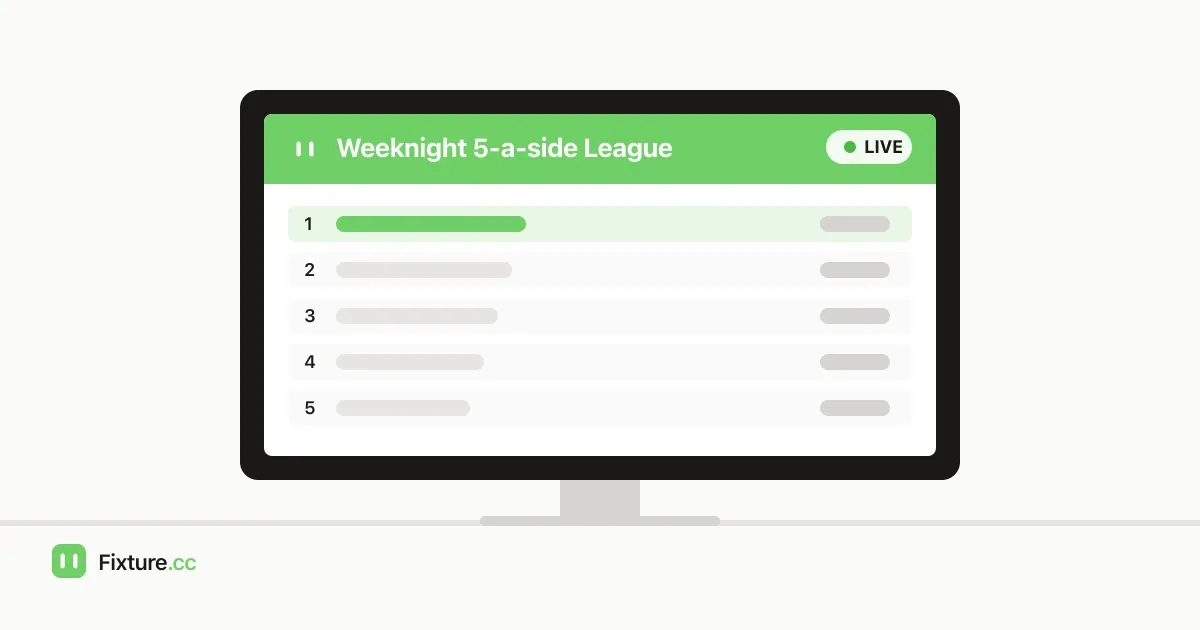
Someone always ends up hunched over a laptop plugged into the venue TV, retyping scores into a spreadsheet while players drift over between matches to ask "what's the score on court two?" By the time the screen catches up, the information is already old, and whoever is running the laptop can't leave it unattended for a minute without the display freezing on the last update.
The direct fix is simpler than it looks: open your competition's live page on the TV, monitor or projector once, and let it update itself. You do not need broadcast software, a second PC dedicated to the display, or someone babysitting a spreadsheet all evening.
This guide covers what actually breaks down with a manual scoreboard setup, what a live venue display needs to work properly, and how Fixture.cc's TV Mode handles it, including its auto-refresh, auto-scaling and auto-cycling behaviour.
Why the laptop-and-spreadsheet setup breaks down
A typical five-a-side league night, club tournament or school sports day ends up with a variation of the same setup: a laptop connected to the venue TV over HDMI, showing a spreadsheet or a slide someone updates by hand between matches.
It works for the first half hour. Then the problems stack up:
- One person becomes the bottleneck. Whoever is entering results also has to remember to switch to the display tab, and everything stalls the moment they're refereeing a match or dealing with a late arrival.
- The screen and the actual result drift apart. A goal gets scored, three matches finish, and the display still shows the score from twenty minutes ago.
- It doesn't scale past one screen. If you're running two courts, you need two people keeping two files in sync, or one screen that only shows half the picture.
- The laptop itself gets in the way. Screensavers kick in, someone accidentally closes the tab, and the machine driving the display often needs to be the same machine collecting results, so it can't be tucked away.
None of this is really about picking better software for the spreadsheet. It's that a screen showing "the current score" and a person actively typing "the current score" are two different jobs, and doing both with one file and one laptop guarantees the display falls behind.
What a working venue display actually needs
Separate the two jobs. Whoever is refereeing, umpiring or scoring a match should be able to update a result from wherever they are, on a phone, without touching the TV at all. The screen's only job is to read the current state and show it, automatically, from any device that has a browser.
That means the display needs to:
- pull from one live source of results rather than a copy someone updates manually;
- refresh on its own the moment a score changes, without anyone pressing anything;
- stay readable from the back of a hall or across a parking area, not just from the front row; and
- keep going unattended for hours, through a full afternoon of a round-robin league or a knockout bracket, without someone resetting it.
How Fixture.cc's TV Mode handles it
Every Fixture.cc competition has a live TV page you open straight from the admin panel; there's a TV Mode button next to share and PDF export that opens it in a new tab. From there:
- It updates itself. The display listens for changes and refreshes automatically the moment anyone enters a result elsewhere, whether that's on a phone at courtside or from the main admin screen. Nobody touches the TV.
- Text, logos and tables scale up automatically. TV Mode isn't the same layout shrunk onto a bigger screen; headings, the standings table and team badges are rendered noticeably larger so they're legible from across a room or gym.
- It cycles through views on its own. If your competition has more than one tab worth showing, fixtures, standings, a bracket, TV Mode rotates between them roughly every 30 seconds so you don't need a second person swapping tabs all evening.
- Long brackets scroll themselves. A single-elimination draw that doesn't fit on one screen scrolls down slowly, pauses at the bottom, then jumps back to the top and repeats, and snaps straight back to the top once the final result is in so the winner is the first thing anyone sees.
- It only needs a browser. A smart TV's built-in browser, a Fire TV Stick, an old laptop, or a projector connected to a mini PC all work the same way: open the link once and leave it.
- You only tap it once. Browsers block a page from jumping straight into full screen on its own, so the first thing the display shows is a single "tap to start" prompt. After that one tap, it stays full screen for the rest of the event.
- It's free and needs no login on the screen itself. Nobody standing near the TV needs an access code or an account; the page only shows the same public information anyone could see on your competition's public page.
A concrete example
Picture a six-team weeknight five-a-side league, the kind covered in our guide to starting a recreational sports league, running across two courts at a sports hall. One organiser keeps their phone in a pocket and taps in each score as it happens. Two TVs, one bolted to the wall at each end of the hall, each have TV Mode open and left alone all night, cycling between that week's fixtures and the league table. Nobody has touched either screen since kick-off, and both show the same score within a few seconds of it being entered, because they're both reading the same live competition rather than two separate copies of it.
Limitations worth knowing before matchday
- You need a connection at the venue. TV Mode fetches live data over the internet, so a screen with no Wi-Fi or ethernet at the venue won't update. A mobile hotspot is usually enough for a single display.
- One screen shows one competition. If you're running several separate leagues or tournaments in the same venue, each needs its own tab or its own screen; TV Mode doesn't merge multiple competitions into one rotating display.
- The first tap is unavoidable. It's a browser restriction rather than a Fixture.cc limitation, but someone still has to walk up and tap the screen once when it's first plugged in.
Frequently asked questions
Do I need an app or extra hardware to show live scores on a TV?
No. Anything with a browser and an HDMI-connected screen works, a smart TV, a Fire TV Stick, a mini PC, or a projector plugged into a laptop. There's nothing to install.
Does the screen update automatically, or do I need to keep refreshing it?
It updates itself. TV Mode listens for changes and redraws the page automatically as soon as a score is entered elsewhere, so nobody needs to sit near the display or press refresh.
Can I use a projector instead of a TV?
Yes. TV Mode is just a web page, so anything that can display a browser, including a projector connected to a laptop or mini PC, shows it the same way.
Will spectators see any admin information on the display?
No. TV Mode shows the same public fixtures, results and standings anyone could see on your competition's public page. Access codes, admin controls and edit links never appear on it.
What happens if I'm running a knockout bracket that's too big for one screen?
TV Mode scrolls a long bracket slowly on its own, pausing briefly at the top and bottom, so the whole draw is visible over time without anyone touching the screen. It jumps back to the top automatically once the final is decided.
If you haven't set up your competition yet, you can create a free competition in about a minute, add your teams, and have a TV Mode link ready before the first match kicks off.
Our editorial process
How we research and review our content
Our research process depends on the subject. We select the sources that can answer the article's actual question, cross-check important claims, and distinguish documented facts from editorial judgement.
- Practical context and direct experience
- We draw on our team's experience of sports, equipment, and organising competitions when it is relevant. Direct use informs our judgement only where it actually occurred; we do not present research as hands-on testing.
- Primary and authoritative sources
- Depending on the topic, we consult governing-body rules, official guidance, manufacturer specifications and manuals, standards, technical documentation, and other first-party sources.
- Independent and public evidence
- For comparisons and recommendations, we may examine specialist reviews, public customer feedback, retailer information, ratings, and recurring real-world issues. We cross-check patterns and never treat one comment or score as proof.
- Editorial review and updates
- We compare the available evidence with the reader's likely needs, explain uncertainty and trade-offs, verify important claims, and update content when rules, products, features, or source information change.
Share this article
Send this guide to someone who might find it useful.

About the author
Fixture.cc editorial team
The Fixture.cc editorial team is a global group of sports enthusiasts creating practical, trustworthy guides for sports fans, competition organisers, coaches, and teachers.
View editorial profileKeep reading
Related articles
How to Embed a Live League Table on Your Website or Facebook Group
Add a live, self-updating league table to your club website with one embed code, and the right way to share it on Facebook, where iframes don't work.
How to Run a Class Tournament in 45 Minutes
Fit a fair class tournament into a single lesson by working from real playing minutes, not the timetable, and picking a format that matches your courts.
How to Open Online Registration for Your League or Tournament
Set up an online registration form for your league or tournament so teams sign up themselves, get automatic confirmation, and land straight in your fixtures.